SwizzyerRobux — Instant Robux delivery in packs
SwizzyerRobux — a module for Playerok Universal that automates Robux delivery in Roblox by logging into the buyer's account (buying packs). It works through the Swizzyer service: when you buy the plugin from me, you get access to the service without having to meet its criteria. Rich functionality, flexible and convenient setup through the Telegram menu.
How does it work?
- The buyer pays for the order on Playerok
- The bot asks for additional login details or sends an authorization link
- After confirmation, the Swizzyer bot logs into the Roblox account and pays via Microsoft for Robux packs adding up to the purchased amount (for example, 240 Robux — 3 packs of 80)
- The bot sends a message about the successful top-up and logs out of the account
Two methods
Dialog
- The bot asks for login details (2FA, email code) right in the Playerok chat
- Better, more convenient and safer for many buyers
HostedLink
- The buyer gets a link (https://2faroblox.com/v/...) to authorize
- On the site they enter the code from their email and confirm the login to their Roblox account
Features
- 🛒 Automatic pack calculation for the purchased amount — no need to set up packs by hand for each item
- For example: an item for 660 R$ — 3 packs: 500 R$ × 1, 80 R$ × 2
- An item whose amount can't be made up of packs was bought — the plugin gives an error and sends you a notification in TG
- 🔔 Telegram notifications — full control: trading at a loss, errors and more
- On a price mismatch (purchase price above the selling price or the threshold)
- On low balance (you can set a threshold)
- When the Swizzyer subscription or transactions run out
- On order errors
- On order cancellation, failure, expiry or partial delivery
- 📢 Buyer reminders — for orders that were completed but not closed
- Reminder interval setting
- Manual reminders in the TG menu
- ↩️ Automatic refund — on errors on Swizzyer's side
- Can be turned on or off
- 📊 Sales statistics
- For a day, a week, a month and all time
- Most profitable items
- Count: total, sales, refunds
- Total revenue
Managing in Telegram
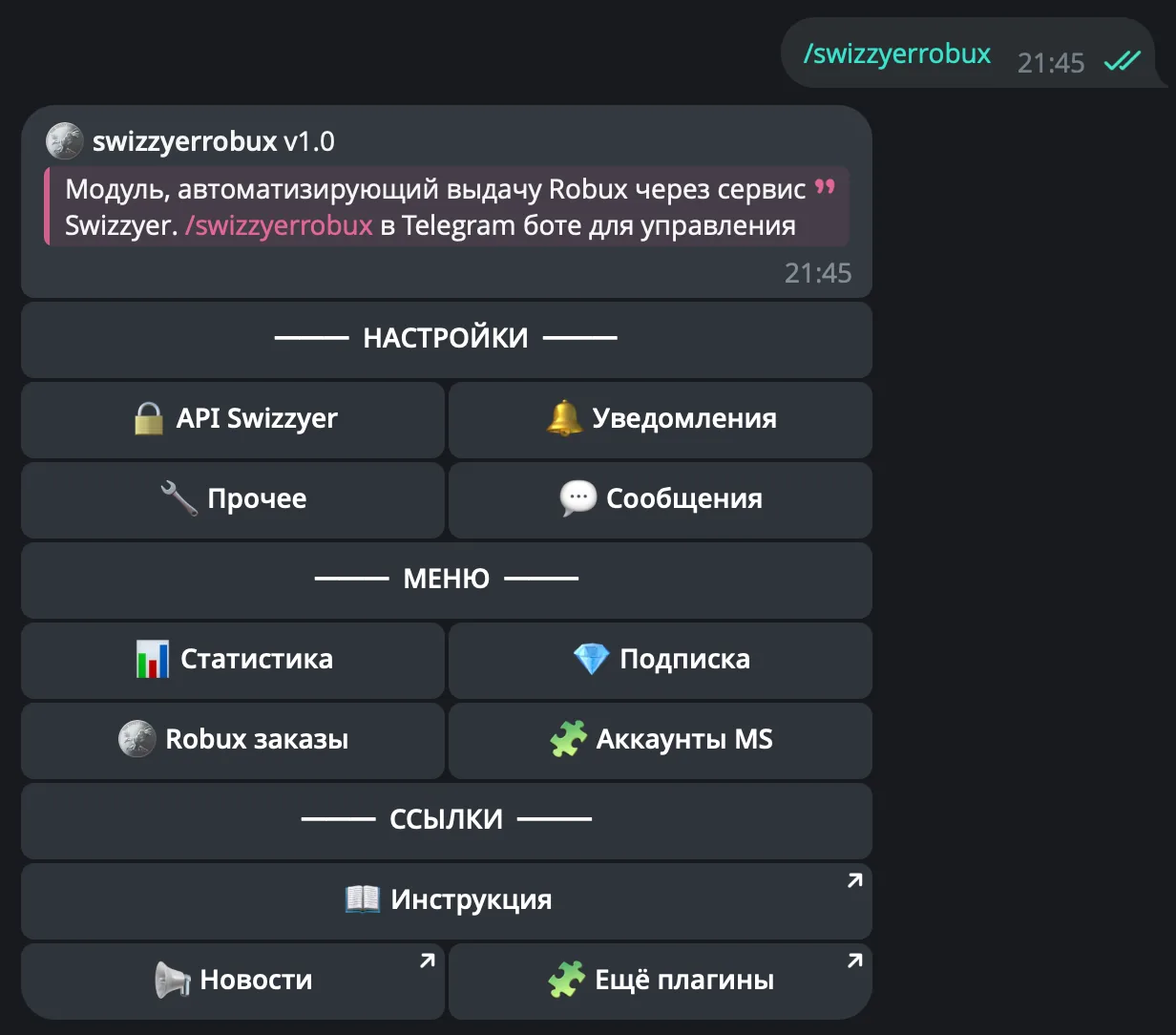
The plugin is fully managed through a dedicated, convenient menu in the TG bot. A full overview of all menu sections is in the YouTube video
The bot menu is in Russian. Button names in this guide are given as they appear in the bot, with a translation in brackets
Demo
What's included?
- License
- Issued to your Telegram account
- Bound to your device
- Managed through our bot
- Plugin
- Download it in our bot
- All future updates included
- Tech support
- Help with installation
- Help with proper setup
Price: 3990 RUB / lifetime
To buy, contact — @friedfluoride
The license is lifetime only, there's no way to buy it for a limited time yet
License, refund and support terms are in the license agreement.
How to use
Once you've been issued a license, go to our bot @friedshopbot, send it the /start command, open «🔐 Мои лицензии» (My licenses) in the main menu and tap the license you bought.
The menu that opens lets you manage your license. To download the module, tap the corresponding button and the bot will send you an archive with the module inside as a folder.
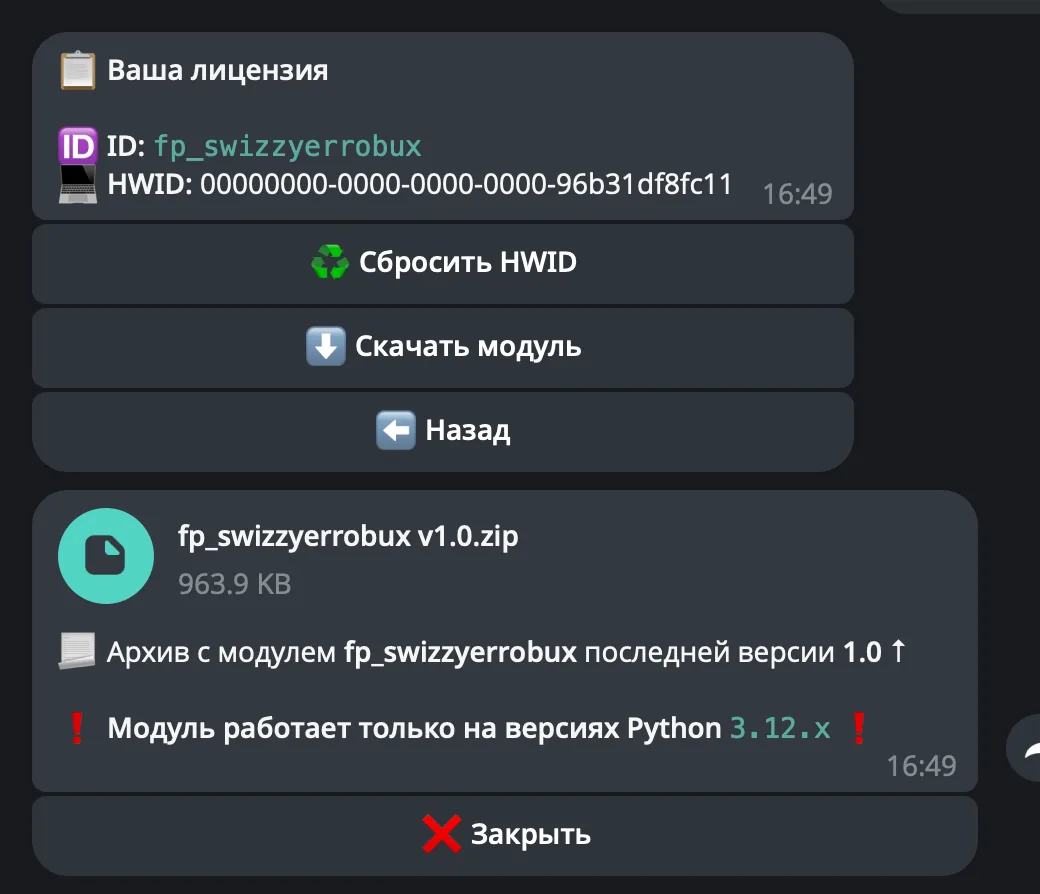
Download the Playerok Universal bot if you haven't yet, and run it. Open the main menu, go to «Модули» (Modules) and tap «Импортировать» (Import). Then send the downloaded archive to the bot.
Once the module is imported, restart the bot with the /restart command. After the restart, the /swizzyerrobux command will appear in the Telegram bot — it opens the plugin menu.
On the first launch you'll need to bind the license to your device. Open the plugin menu and follow the link shown there to do it.
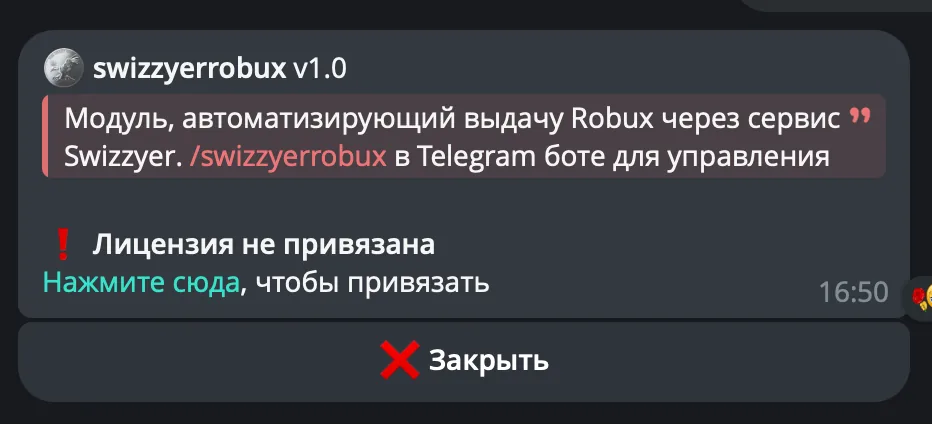
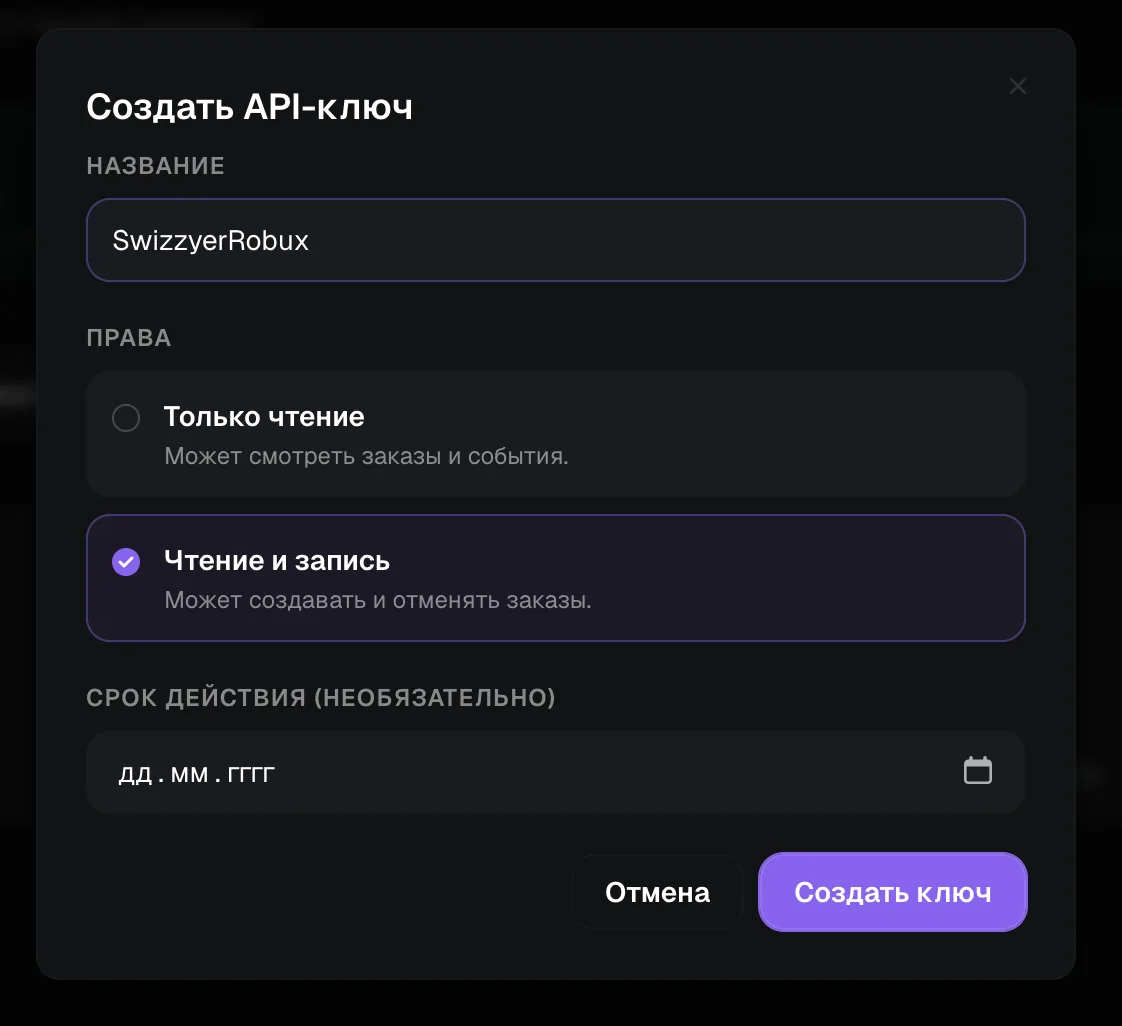
After that, you'll need to enter an API key in the settings. Create it in the corresponding section on Swizzyer
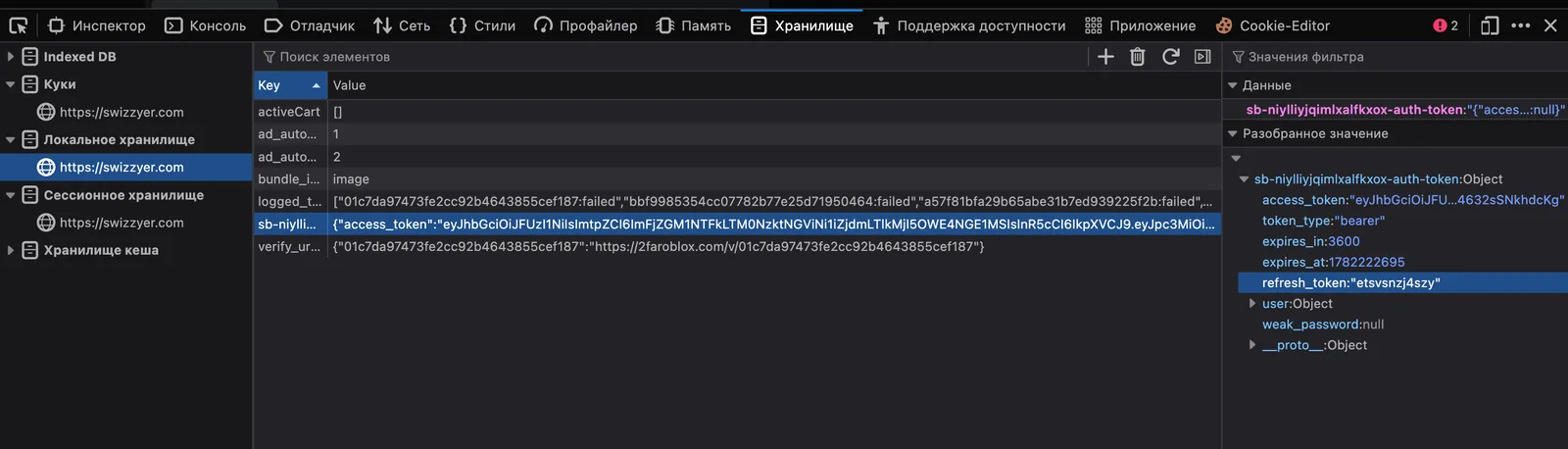
It's also recommended to set the refresh token — the «🍪 Refresh-токен» (Refresh token) button in the same «🔒 API Swizzyer» section. To get it, log in to swizzyer.com and open developer tools (F12 or fn + F12)

Open «Local storage» (in Chrome it's under the «Application» tab), find the item with the key sb-...-auth-token and click it. In the data on the right, copy the refresh_token value — only the part in quotes