AutoSteamRental — Steam account auto-rental
AutoSteamRental — a module for Playerok Universal that automates Steam account rental: it gives the buyer the account details and SteamGuard codes, tracks the rental period and changes the account password once it ends. Rich functionality, flexible and convenient setup through the Telegram menu.
How does it work?
- The buyer pays for an item that has a rental service linked to it
- The plugin takes an available account from the service. None available — the buyer gets an error message, you get a notification in Telegram, and the order is refunded (if auto-refund is on)
- If the category is on the restricted list, the plugin checks the age of the buyer's Playerok account. Too new — refund
- The buyer gets the login, password and rental period
- The buyer logs in to the account and writes
!steamguard <account login>in the chat — the plugin sends a SteamGuard code. The rental countdown starts with the first code - Didn't request a code in the allotted time — the plugin refunds the order and changes the password
- 15 minutes before the end the buyer gets a reminder
- Time's up — the plugin marks the order as completed, changes the password, the buyer's session is closed and the account is available again. The buyer is asked to confirm the order and leave a review
What do you need?
- A maFile for every account — the plugin uses it to get SteamGuard codes and change the password. The file must be unencrypted. How to get it is in the guide below
- The current password — after every rental the plugin changes the password itself and remembers the new one. If you changed the password by hand, update it on the account page in the plugin menu, otherwise the next change will fail
- Items on Playerok — a service is linked to them by their links
Features
- 🎮 Rental services — Playerok items + rental period + accounts
- Linked to items by their links: to one or to several at once — as a list or a
.txtfile - As many accounts per service as you like
- Linked to items by their links: to one or to several at once — as a list or a
- 👤 Steam accounts
- Added with a login, password and maFile
- Each one shows its status: available or rented
- SteamGuard code right in the bot — with a timer and a refresh button
- Change the password or free up an account by hand, with a button
- Order refunded — the account is freed up and the password is changed
- 🔒 SteamGuard code on command —
!steamguard <account login>- Only the person who rented the account gets the code
- The rental starts with the first code, the buyer gets the start and end date (MSK)
- ↩️ Automatic refund when there are no available accounts — can be turned off
- The buyer gets an error message, you get a notification in Telegram
- A service has run out of available accounts — the plugin warns you in Telegram in advance, before new orders come in
- ↩️ Refund if the buyer didn't log in — can be turned off
- Didn't request a code in the allotted time — the order is refunded and the password is changed
- The time to log in is configurable, 30 minutes by default
- 🛡️ Cheater protection
- Selected Playerok categories have a minimum age for the buyer's account, 180 days by default
- Younger account — refund, no details are given out
- By default the list includes CS2, Dota 2, PUBG, Overwatch 2 and Apex Legends — the list can be changed
- 🎁 Review bonus — can be turned off
- For a 5-star review the buyer gets extra rental time, 1 hour by default
- 🔔 Reminders and notifications
- To the buyer — 15 minutes before the rental ends
- To those whose rental has ended but the order isn't confirmed — on a schedule (once a day by default) or with a button
- To you in Telegram — rental errors, no available accounts left, a new plugin version is out
- 💬 Messages to the buyer
- 11 messages — for every rental stage, the command and errors
- Any of them can be edited or turned off
- 📊 Statistics
- For a day, a week, a month and all time
- Orders: total, completed, refunded, amount, top item
Managing in Telegram
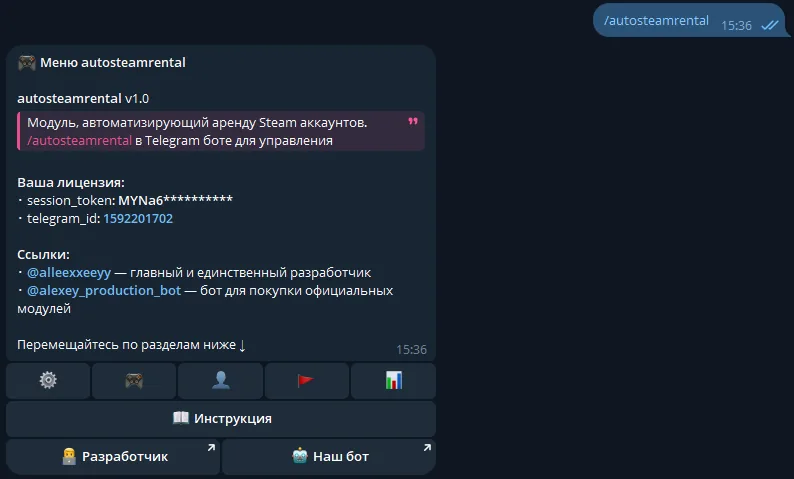
The plugin is fully managed through a dedicated, convenient menu in the TG bot. A full overview of all menu sections is in the YouTube video
The bot menu is in Russian. Button names in this guide are given as they appear in the bot, with a translation in brackets
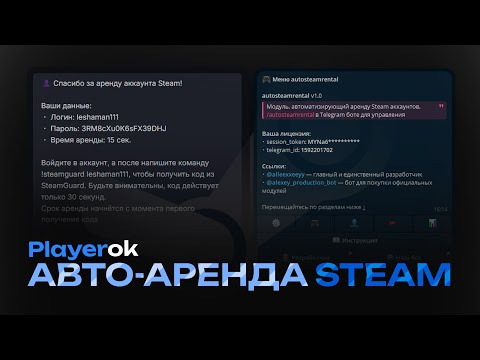
Demo
What's included?
- License
- Issued to your Telegram account
- Bound to your device
- Managed through our bot
- Plugin
- Download it in our bot
- All future updates included
- Tech support
- Help with installation
- Help with proper setup
Price: 4990 RUB / lifetime
To buy, contact — @friedfluoride
The license is lifetime only, there's no way to buy it for a limited time yet
License, refund and support terms are in the license agreement.
How to use
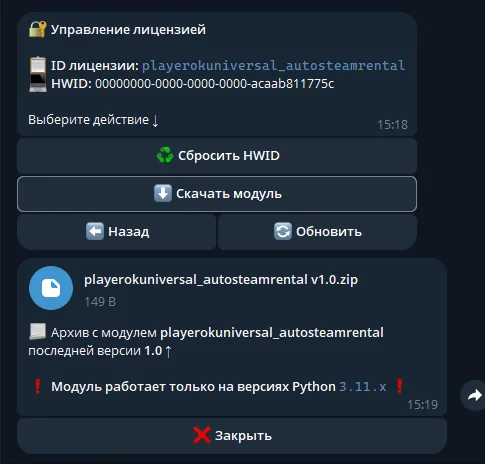
Once you've been issued a license, go to our bot @friedshopbot, send it the /start command, open «🔐 Мои лицензии» (My licenses) in the main menu and tap the license you bought.
The menu that opens lets you manage your license. To download the module, tap the corresponding button and the bot will send you an archive with the module inside as a folder.
Download the Playerok Universal bot if you haven't yet, and run it. Open the main menu, go to «Модули» (Modules) and tap «Импортировать» (Import). Then send the downloaded archive to the bot.
Once the module is imported, restart the bot with the /restart command. After the restart, the /autosteamrental command will appear in the Telegram bot — it opens the plugin menu.
On the first launch you'll need to bind the license to your device. Open the plugin menu and follow the link shown there to do it.
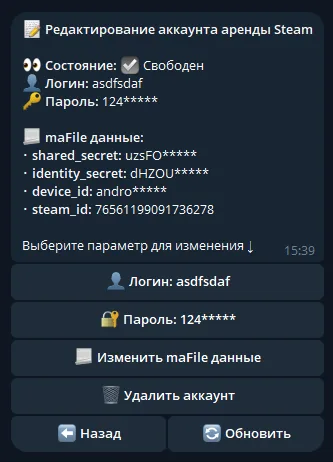
Next, to get started, add the Steam accounts you're going to rent out. Go to «👤 Аккаунты» (Accounts) → «➕ Добавить» (Add): the bot will ask for the account's login, password and maFile. Send the maFile as a file with the .maFile extension.
How to get a maFile — method 1, via Steam Desktop Authenticator (the account must have a phone number linked):
- If the Steam mobile authenticator is linked to the account, unlink it: Steam app → Steam Guard section → turn the protection off
- Install Steam Desktop Authenticator following the instructions on the program's GitHub page
- Open the program and authorize the account — you'll need the codes sent to your email and phone number. After that, login codes will be shown in the program's main window
- Open the folder where Steam Desktop Authenticator is installed, and the
maFilessubfolder inside it. The file you need is named after the account's Steam ID and has the.maFileextension
Method 2, via the Steam Inventory Helper extension (no phone number needed):
- Unlink the Steam mobile authenticator if it's linked — the same way as in method 1
- Install the extension, link the account in it and get the maFile. All the steps are in this video
Don't encrypt the maFile, even if the program offers to — the plugin can't read an encrypted file. Never share the maFile with anyone — it gives access to the account's SteamGuard
Once added, the account appears in the list with the «☑️ Свободен» (Available) status. On its page you can change the login, password and maFile, get a SteamGuard code or change the password by hand.
Now create a rental service in «🎮 Услуги» (Services) → «➕ Добавить» (Add): the bot will ask for a link to the Playerok item (for example, https://playerok.com/products/dota-2-akkaunt) and the rental period in seconds — for example, 3600 is 1 hour. To link the service to several items at once, send the links one per line or as a .txt file.
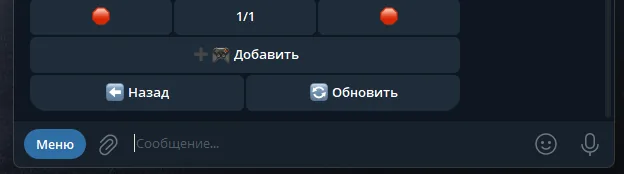
Open the service you created, go to «👤 Аккаунты» (Accounts) and tap the accounts that should be rented out under this service — the icon of linked ones changes to ✅. You can add as many accounts to one service as you like.
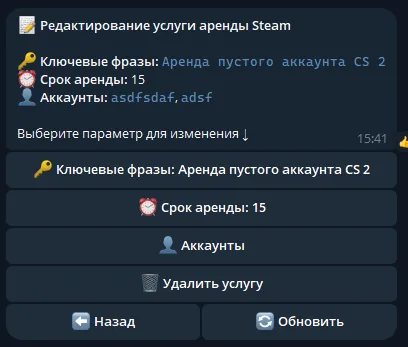
Done: when a buyer pays for a linked item, the plugin gives them an available account. The time to log in, auto-refunds, the review bonus and the account age restriction are configured in «🔧 Прочее» (Other) and «🛡️ Защита» (Protection).