AutoSteamOffline — Steam offline activations
AutoSteamOffline — a module for Playerok Universal that automates selling Steam offline activations: the buyer gets the login and password to your account and requests the Steam Guard code in the chat themselves. Rich functionality, flexible and convenient setup through the Telegram menu.
How does it work?
- You add a Steam account (login, password and maFile) and link Playerok items to it
- The buyer pays for an item — the plugin finds the account this item is linked to
- If the item is in a restricted category, the plugin checks the age of the buyer's Playerok account. The account is younger than the set age — the buyer gets a message with the reason, and the order is refunded
- The buyer gets the account's login and password
- The buyer logs in to Steam and sends
!guardin the chat — the plugin sends the Steam Guard code for their latest order and marks the order as completed on your side - The code for one order can be requested a limited number of times — 3 by default
- Got the code but didn't confirm the order — the plugin reminds the buyer to confirm it
- The order is confirmed — the remaining codes can still be requested until the limit runs out. The order is refunded — no more codes are issued for it
What do you need?
- A maFile for every account — the plugin generates Steam Guard codes from it. You need an unencrypted
.maFile; how to get one is in the guide below - Playerok items linked to the accounts — the plugin doesn't touch orders for items that aren't linked
What won't the plugin do?
- It doesn't change the password or track who's on the account right now — all buyers of the items linked to one account get that account's details
- It doesn't check the login and password — if you changed the password in Steam, change it on the account page in the plugin too, otherwise buyers will get the old one
Features
- 👤 Steam accounts and item linking
- An account is added with a login, password and maFile
- Items are linked by their links — several at once, one link per line or as a
.txtfile - Login, password and maFile can be changed at any time
- The «🔒 Код SteamGuard» (SteamGuard code) button on the account page shows the current code and how many seconds it's still valid
- 🔒 Steam Guard codes on command —
!guard, without an order number- The code is issued for the buyer's latest order
- After issuing the code, the plugin marks the order as completed on Playerok by itself
- Code limit per order — 3 by default, changed in «🔧 Прочее» (Other)
- After the order is confirmed, unused codes stay available up to the limit; after a refund, codes are no longer issued
- 🛡️ Protection against new accounts — filters out bad actors who get accounts banned
- For selected categories you set a minimum age of the buyer's Playerok account — 180 days by default
- The account is younger — the buyer gets a message with the reason, and the order is refunded automatically
- By default the restriction is set on Counter-Strike 2, Dota 2, PUBG, Overwatch 2 and Apex Legends accounts
- 📢 Notifying buyers
- The plugin messages buyers who already got a code but didn't confirm the order, asking them to confirm it
- On a schedule — the interval is configurable, once a day by default — or manually with the «🔔 Оповестить заказы» (Notify orders) button
- 🔔 Error notifications — an order couldn't be processed or a code couldn't be issued — you get a Telegram message with the buyer, a link to the order and the error text
- 💬 Messages to the buyer
- 5 messages: account details, code, error getting the code, reminder and rejection due to account age
- Any of them can be edited or turned off
- 📊 Statistics
- For a day, a week, a month and all time
- Orders: total, completed, refunded, amount, best-selling item
Managing in Telegram
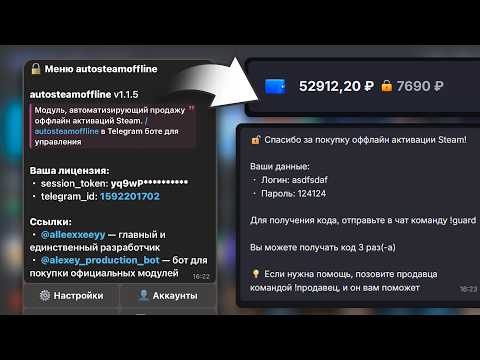
The plugin is fully managed through a dedicated, convenient menu in the TG bot. A full overview of all menu sections is in the YouTube video
The bot menu is in Russian. Button names in this guide are given as they appear in the bot, with a translation in brackets
Demo
What's included?
- License
- Issued to your Telegram account
- Bound to your device
- Managed through our bot
- Plugin
- Download it in our bot
- All future updates included
- Tech support
- Help with installation
- Help with proper setup
Price: 2990 RUB / lifetime
To buy, contact — @friedfluoride
The license is lifetime only, there's no way to buy it for a limited time yet
License, refund and support terms are in the license agreement.
How to use
Once you've been issued a license, go to our bot @friedshopbot, send it the /start command, open «🔐 Мои лицензии» (My licenses) in the main menu and tap the license you bought.
The menu that opens lets you manage your license. To download the module, tap the corresponding button and the bot will send you an archive with the module inside as a folder.
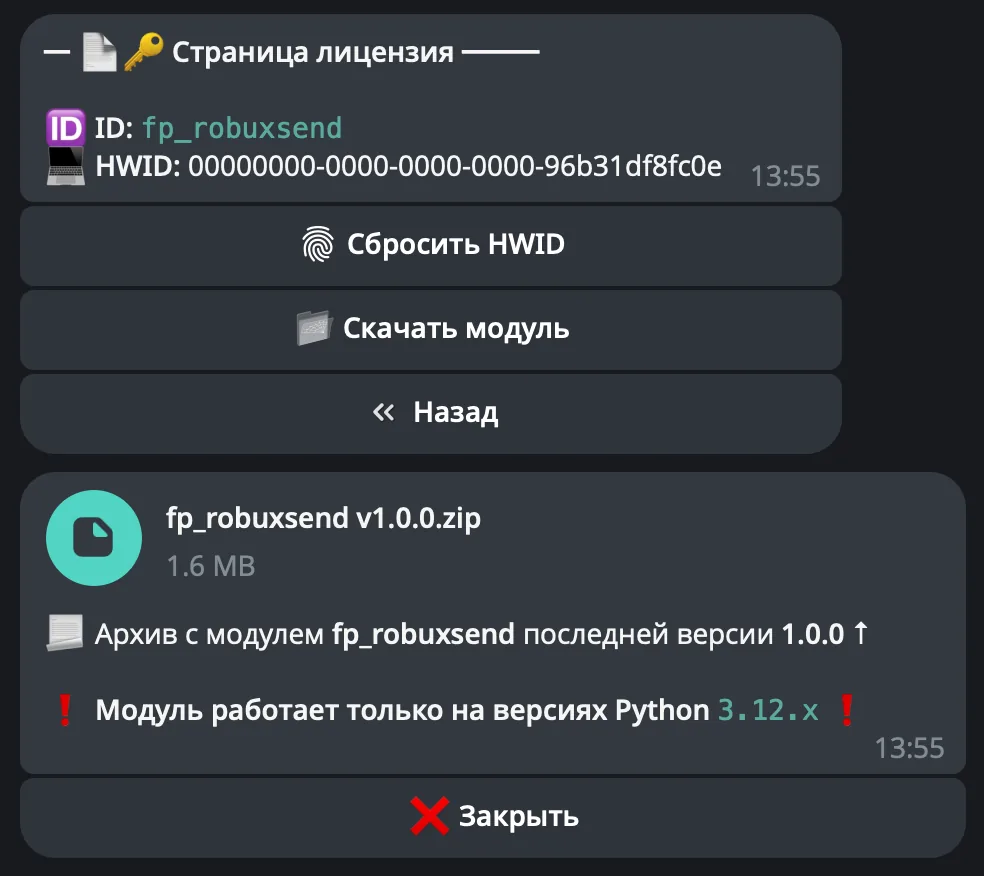
Download the Playerok Universal bot if you haven't yet, and run it. Open the main menu, go to «Модули» (Modules) and tap «Импортировать» (Import). Then send the downloaded archive to the bot.
Once the module is imported, restart the bot with the /restart command. After the restart, the /autosteamoffline command will appear in the Telegram bot — it opens the plugin menu.
On the first launch you'll need to bind the license to your device. Open the plugin menu and follow the link shown there to do it.
Next, to get started, add the Steam accounts you're going to sell. Go to «👤 Аккаунты» (Accounts) → «➕ Добавить» (Add): the bot will ask for the account's login, password and maFile, then show the details for you to confirm.
There are two ways to get a maFile. For both, first remove the Steam mobile authenticator if it's linked: in the Steam mobile app, open the Steam Guard section and turn the protection off.
Method 1 — Steam Desktop Authenticator (the account must have a phone number linked):
- Install Steam Desktop Authenticator following the guide on its GitHub page
- Open the program and log in to the account — you'll need codes sent to your email and phone number
- If the program offers to set an encryption key — decline, the plugin can't read an encrypted maFile
- The finished file is in the program's folder, in the
maFilessubfolder: it's named after the Steam account ID and has the.maFileextension
Method 2 — the Steam Inventory Helper extension (no phone number needed):
- Install the Steam Inventory Helper extension
- Link the account in it and get the maFile — the steps are shown in this video
- If the extension offers to encrypt the maFile — decline, otherwise the plugin won't be able to read it
On the account page you can change the login, password and maFile, and the «🔒 Код SteamGuard» (SteamGuard code) button shows the current Steam Guard code.
Now link items to the account: on the account page open «📝 Товары» (Items) → «➕ Добавить» (Add) and send an item link, for example https://playerok.com/products/dota-2-offlain. Several items — one link per line or as a .txt file.
Finally, check «🛡️ Защита» (Protection). By default, orders in the Counter-Strike 2, Dota 2, PUBG, Overwatch 2 and Apex Legends categories are accepted only from buyers whose Playerok account is older than 180 days. Categories are entered comma-separated, with their full names as on Playerok — for example Аккаунты Dota 2 (Dota 2 accounts).