RobuxSend — Robux auto-delivery via Roblox Plus
RobuxSend — a module for FunPay Universal that automates Robux delivery in Roblox by sending them through Roblox Plus. No gamepasses and no access to the buyer's account — a username is enough. Rich functionality, flexible and convenient setup through the Telegram menu.
How does it work?
- The buyer places an order in the Robux section with the «Roblox Plus» method and enters their Roblox username right in the order
- The plugin finds the account by username. No username or it isn't found — the plugin asks for it in the chat and asks to confirm the order with +/-
- The order joins the queue — the buyer sees their place in it
- Before sending, the plugin checks that the order hasn't been refunded on FunPay
- Robux are sent from your accounts. If one account runs short on balance or limit, the order is split between several
- The buyer gets instructions: open notifications in Roblox and press «Accept» on the transfer
- Not a single Robux could be sent — the plugin refunds the order, turns the offer off and messages you in Telegram. If part has already been sent, it waits for your decision
What do you need?
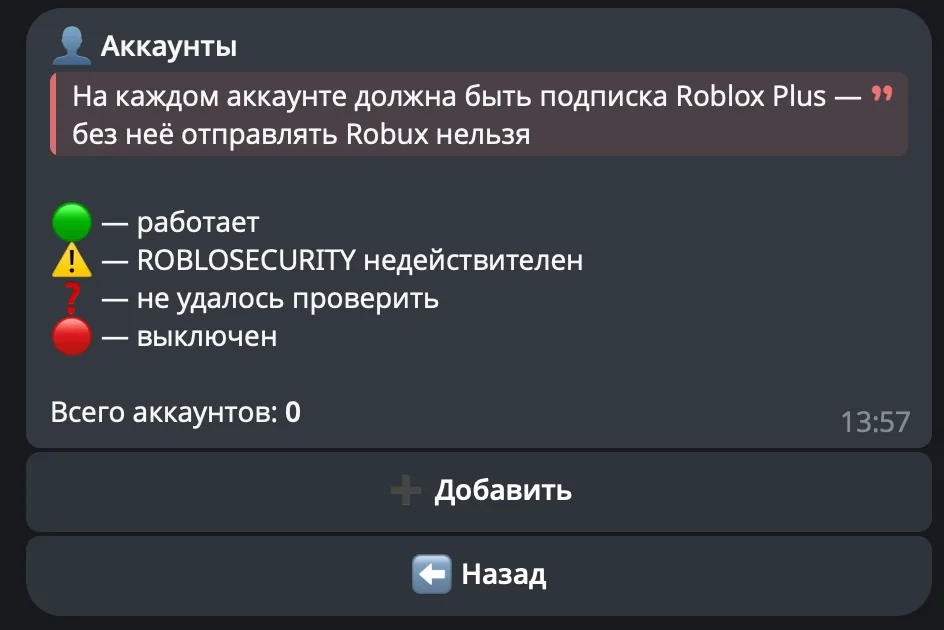
- Roblox Plus on every sender account — without the subscription Roblox won't let you send Robux
- Age check on the sender — Roblox may block sending until the sender account passes it. If sending fails, check this in the Roblox account settings first
- Age check 16+ on the buyer — the buyer has to pass it and accept the transfer within 7 days. Otherwise the Robux come back to your account: the plugin tracks this and notifies both you and the buyer
- Roblox limits — every account has its own transfer limits per day, per 30 days and per transfer. The plugin sees them and takes them into account. Roblox doesn't allow sending less than 10 Robux at once
- autorobux turned off — if you have it, turn it off: both modules work with the same Robux section and will get in each other's way
Features
- 🏷️ Username right from the order — the buyer enters it at checkout, no chatting needed
- No username or it isn't found — the plugin asks in the chat and understands both a username and a profile link
- The buyer sees the name and profile link the Robux will go to
- 👥 Several sender accounts
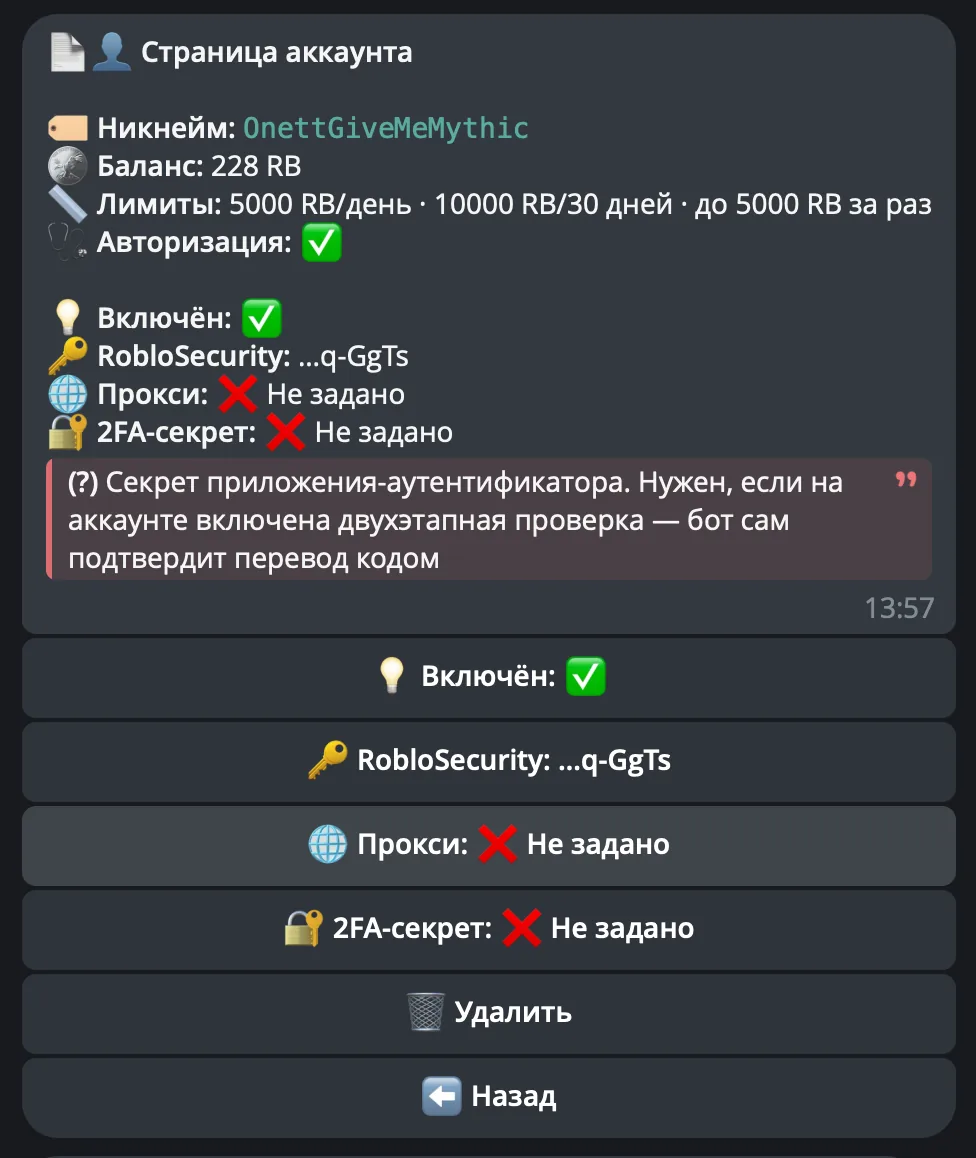
- The list shows the balance and status of every account, the account page also shows its limits
- A separate proxy for each account
- 2FA secret — if two-step verification is on, the bot confirms the transfer with a code by itself
- An account drops off — you get a notification
- 📦 Offer stock is set automatically
- Stock is how much can be sent with the accounts' balance and limits, minus orders already paid
- Out of Robux — the offer turns off, Robux are back — it turns on
- Sending failed because of low balance, a limit or a Roblox error — the offer turns off and stays off, so buyers don't run into refunds
- Turned the offer off by hand — the plugin stops managing it and sends a notification
- Give control back with the button in the notification or the «🔄 Обновлять оффер» (Update offer) toggle
- 🛡️ Protection against double sending
- Not sure whether a transfer went through — the plugin checks the Roblox transfer history instead of sending again
- The bot restarted in the middle of sending — same thing: a history check and a notification to you
- Not everything was sent — a notification with buttons: send the rest or mark the order as done by hand
- ↩️ Automatic refund — can be turned off
- If not a single Robux could be sent
- If the buyer didn't send a username or confirm the order in time
- If Roblox returned the whole transfer and the order isn't confirmed yet
- Part of the Robux has already been sent — the refund is done by hand on FunPay
- ⏱️ Waiting time and reminders
- How long to wait for the username and order confirmation is configurable
- Halfway through, the buyer gets a reminder; when time runs out, you get a notification
- Notifying buyers who received Robux but didn't confirm the order — on a schedule or with a button
- 💬 Messages to the buyer
- 16 messages to the buyer — for every order stage, reminders and errors
- Any of them can be edited or turned off
- 📊 Statistics
- For a day, a week, a month and all time
- Orders: total, completed, refunded, amount
- Robux sent and returned, average order, price of 1 RB
- How much each account sent in 30 days
- What's in progress now: waiting for a username or confirmation, in the queue, waiting for the buyer to accept, waiting for your decision
- 🧪 Test mode — the whole order flow as usual, but Robux aren't actually sent
Managing in Telegram
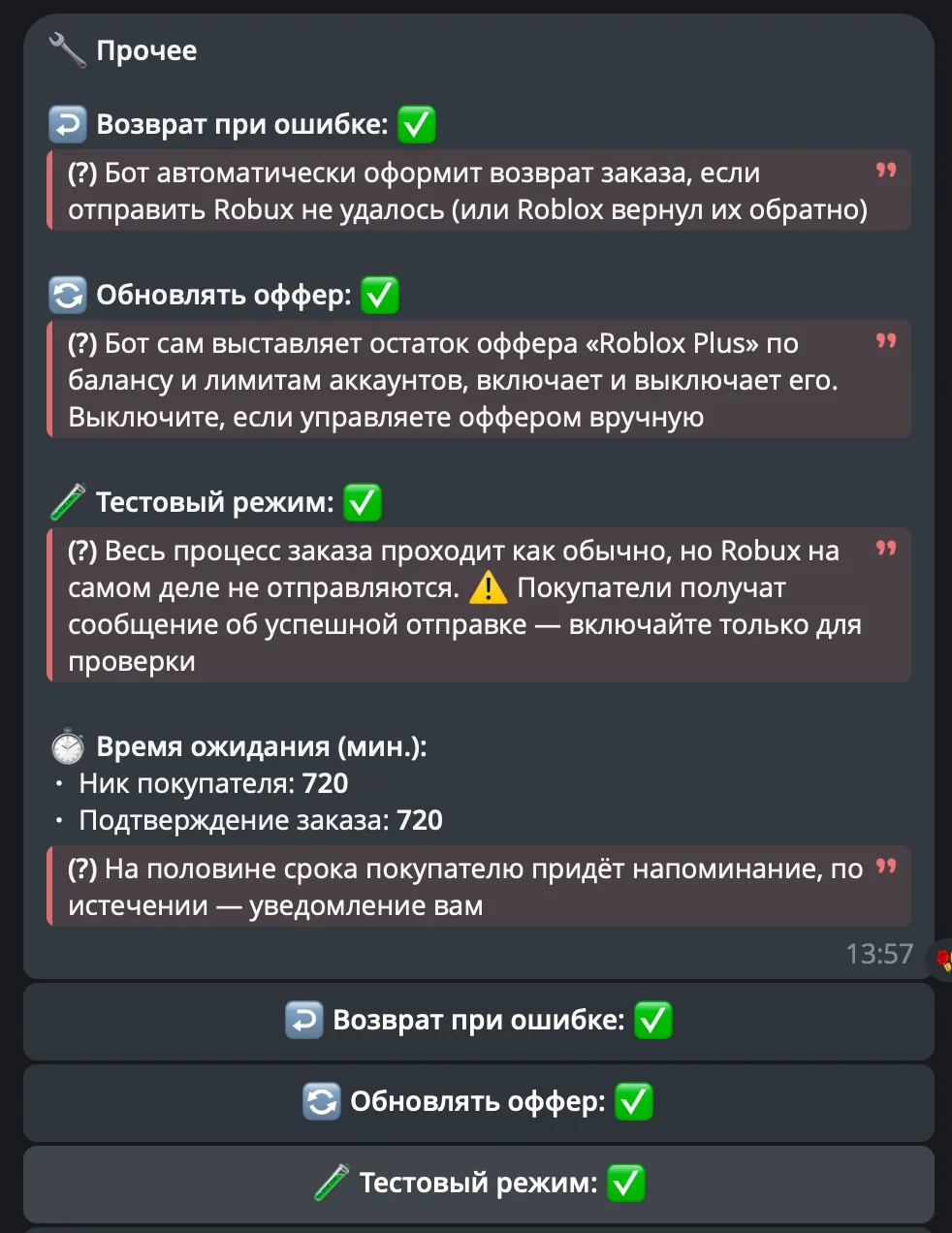
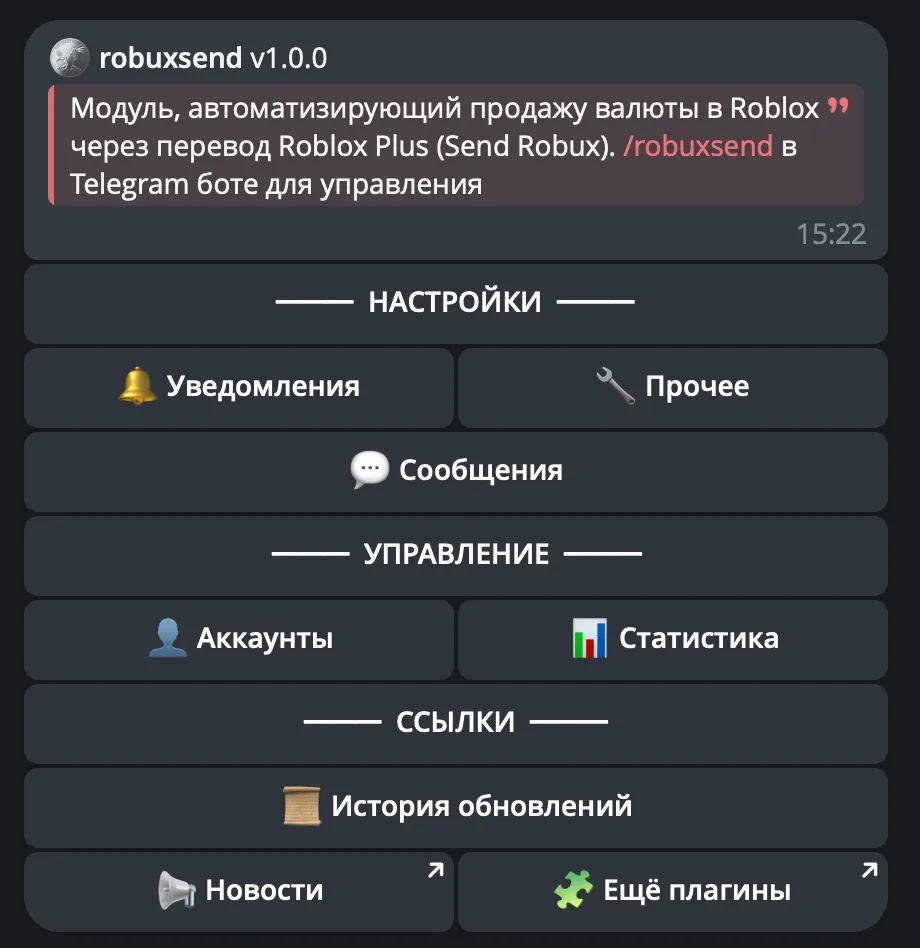
The plugin is fully managed through a dedicated, convenient menu in the TG bot. A full overview of all menu sections is in the YouTube video
The bot menu is in Russian. Button names in this guide are given as they appear in the bot, with a translation in brackets
Demo

What's included?
- License
- Issued to your Telegram account
- Bound to your device
- Managed through our bot
- Plugin
- Download it in our bot
- All future updates included
- Tech support
- Help with installation
- Help with proper setup
Price: 3490 RUB / lifetime
To buy, contact — @friedfluoride
The license is lifetime only, there's no way to buy it for a limited time yet
License, refund and support terms are in the license agreement.
How to use
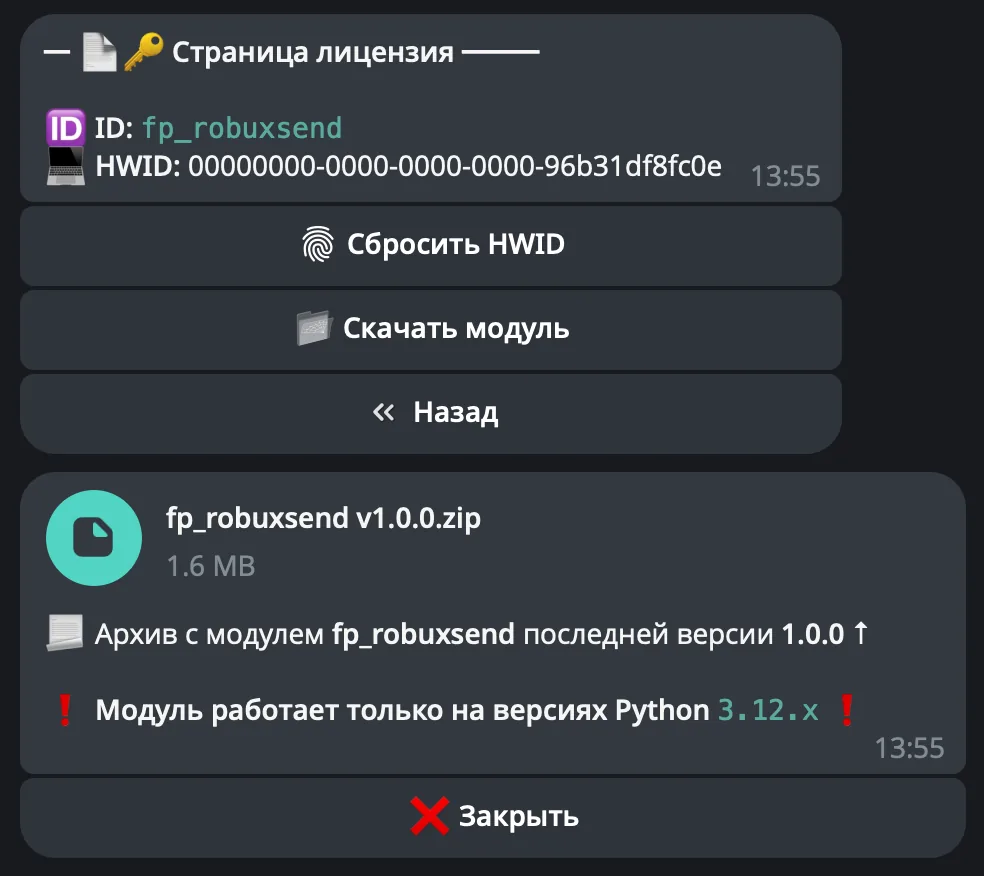
Once you've been issued a license, go to our bot @friedshopbot, send it the /start command, open «🔐 Мои лицензии» (My licenses) in the main menu and tap the license you bought.
The menu that opens lets you manage your license. To download the module, tap the corresponding button and the bot will send you an archive with the module inside as a folder.
Download the FunPay Universal bot if you haven't yet, and run it. Open the main menu, go to «Модули» (Modules) and tap «Импортировать» (Import). Then send the downloaded archive to the bot.
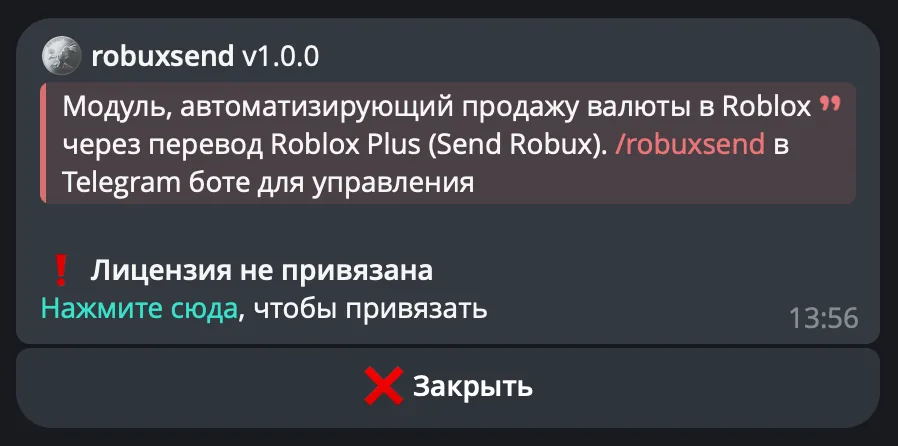
Once the module is imported, restart the bot with the /restart command. After the restart, the /robuxsend command will appear in the Telegram bot — it opens the plugin menu.
On the first launch you'll need to bind the license to your device. Open the plugin menu and follow the link shown there to do it.
Next, to get started, add the accounts Robux will be sent from. Go to «👤 Аккаунты» (Accounts) → «➕ Добавить» (Add): the bot will ask for the account's ROBLOSECURITY and a proxy (you can skip it with «🚫 Без прокси» (No proxy)).
How to get ROBLOSECURITY (Chrome, Edge):
- Log in to the account on roblox.com in your browser
- Open developer tools (F12 or fn + F12)
- Go to the «Application» tab and open «Cookies» →
https://www.roblox.comon the left. In Firefox and Safari the tab is called «Storage» -
Find the
.ROBLOSECURITYcookie and copy its whole value — including the_|WARNING:-DO-NOT-SHARE-THISpart at the start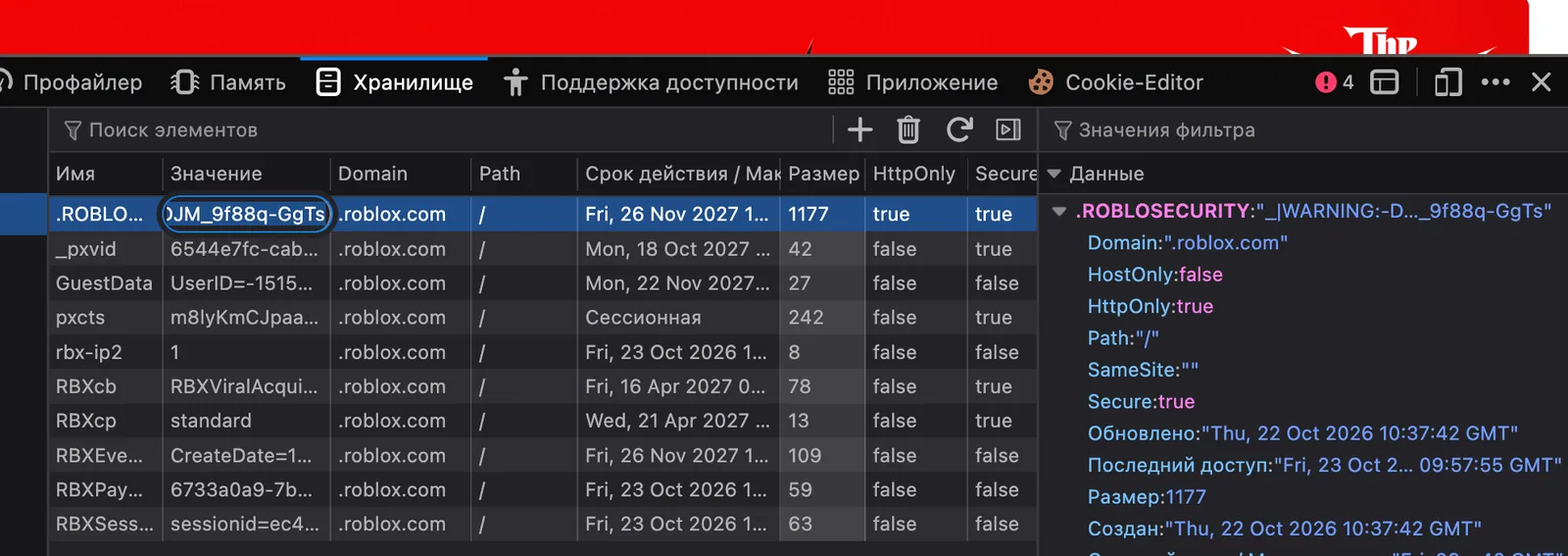
Never share ROBLOSECURITY with anyone — it gives full access to the account. Logging out in the browser or changing the password resets the cookie — the plugin will then notify you that the account dropped off, and you'll need to replace the cookie
On the account page you can set a proxy (IPv4, format user:pass@ip:port or ip:port) — Roblox requests for this account will go through it. If two-step verification through an authenticator app is on for the account, enter the 2FA secret and the bot will confirm transfers with a code by itself.
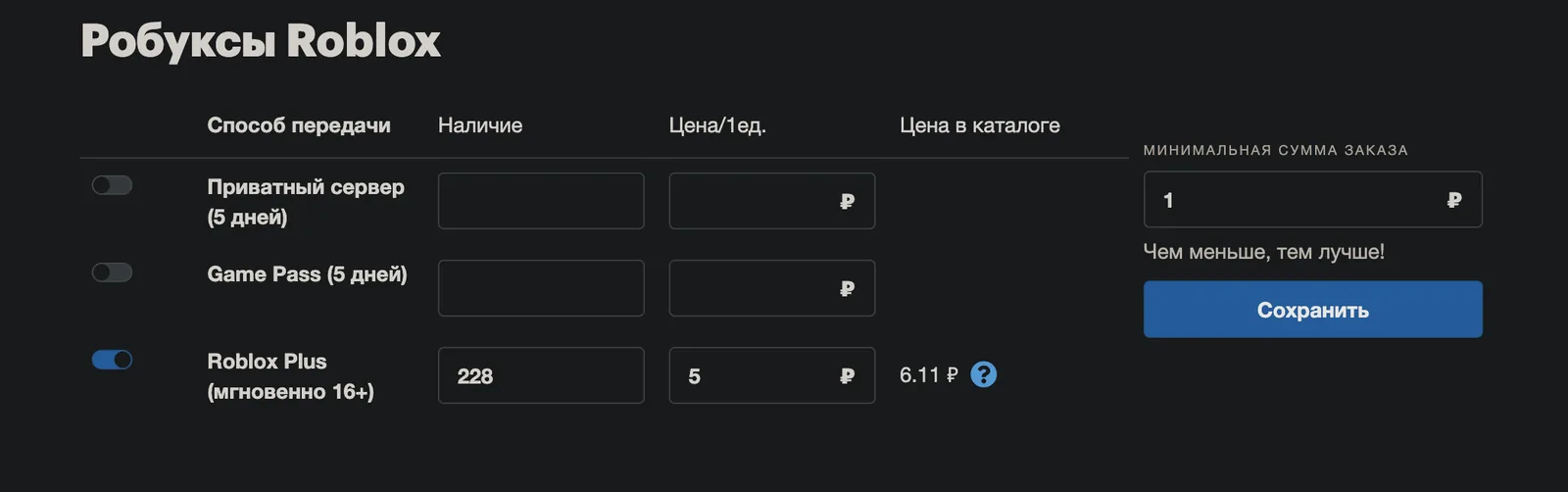
Now create an offer on FunPay: the Robux section, the «Roblox Plus» method. Be sure to set a price — without it the offer isn't created and the plugin can't set the stock (you'll get a notification). The plugin takes care of the stock and turning the offer on. If you'd rather manage the stock yourself, turn off «🔄 Обновлять оффер» (Update offer) in «🔧 Прочее» (Other).
Before going live, we recommend checking everything in test mode («🔧 Прочее» (Other) → «🧪 Тестовый режим» (Test mode)). The plugin goes through every step except actually sending Robux, so you need a real order (for example, from a second FunPay account) and accounts with a balance. The buyer will get a message about a successful transfer — don't forget to turn the mode off after the check.